Social Media
4 min read
•Updated 2026-10-03
How to Download Instagram Reels on PC & Mac (No App)
Instagram has no download button for other people's Reels. Here's the free browser method to save any public Reel in HD on PC or Mac.
Md Atiar Rahman Ovi
Lead Systems Architect, Vidzory Media Lab
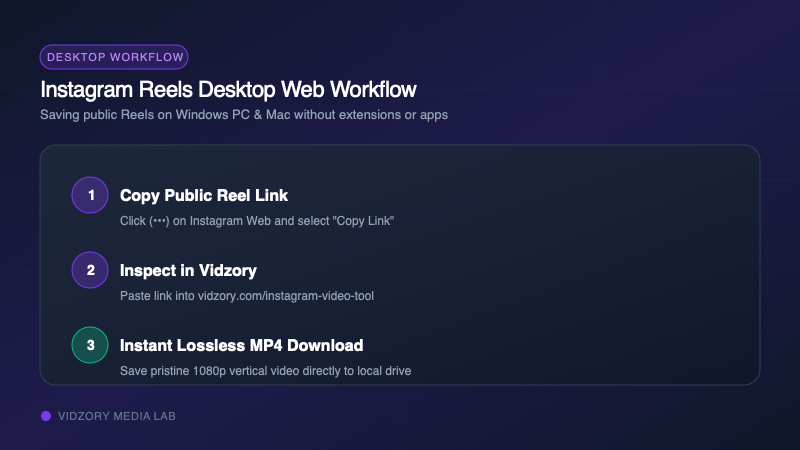
Instagram allows mobile app users to save select Reels if the creator enabled downloads, but desktop web users are left completely without an option. Furthermore, native mobile downloads often strip the soundtrack or apply visual badges. In this guide, you will learn how to save any public Instagram Reel or video post directly to your PC or Mac in full 1080p resolution with synchronized high-fidelity audio.
Why Desktop Browsers Lack a Download Button
Meta intentionally restricts direct video downloads on desktop browsers to maximize user time-on-site and protect ad views. Browser developer tools can inspect network tabs for blob URLs, but decoding these encrypted fragments manually is complex. Vidzory provides a clean, safe web interface that resolves the public progressive stream in seconds.
Step-by-Step Guide for PC and Mac
1. Open your desktop browser (Chrome, Safari, Edge, or Firefox) and navigate to instagram.com.
2. Open the Reel you wish to save.
3. Click the three dots (•••) icon on the right side of the post or copy the URL directly from your browser address bar.
4. Head to vidzory.com/instagram-video-tool.
5. Paste the link into the Vidzory input box.
6. Select Full HD 1080p and click Download. Your browser saves a clean MP4 file ready for editing in Premiere Pro, DaVinci Resolve, or Final Cut.